Part of FlowMate · Getting started guide
FlowMate for Flow Club
Persistent task lists, gentle audio cues, and optional FlowMate sync. Your Flow Club goals stay around even after the session closes.
Quick Start
- 1Install the extension (Chrome or Firefox) and pin it to your toolbar
- 2Open a Flow Club session at in.flow.club: you should hear a soft chime the moment the session starts
- 3(Optional) Sign in from the extension popup to sync sessions to FlowMate and import your saved checklists
That's it. Scroll down only if you want to customize or troubleshoot.
Setup
Install the Extension
Using Brave, Edge, Arc, Opera, or Vivaldi? Install from the Chrome Web Store. Any Chromium-based browser works.
Your First Session
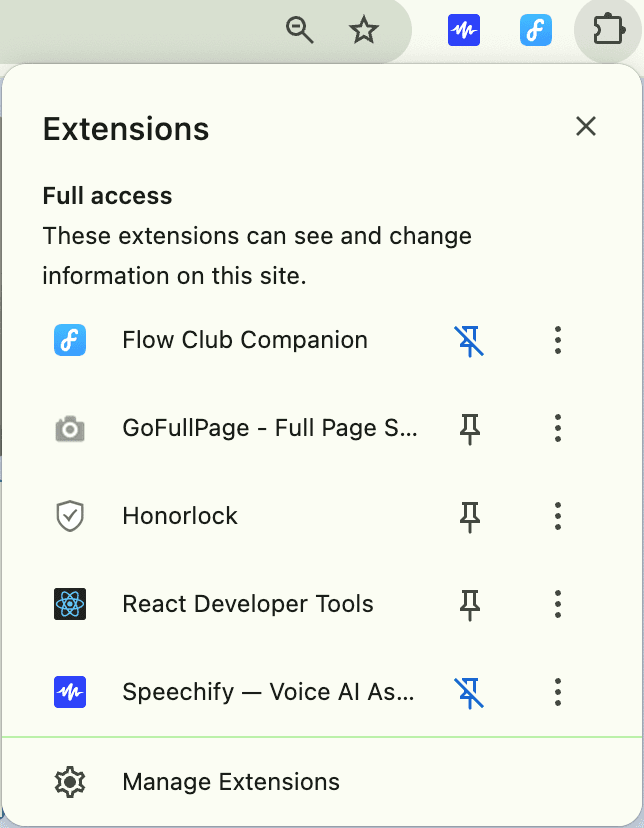
Pin the extension
Click the puzzle icon in your browser toolbar → find FlowMate for Flow Club → click the pin so it stays visible.
Open a Flow Club session
Go to in.flow.club and join or start a session. You should hear a soft chime the moment the session leaves the lounge: that's the extension confirming it's connected.
Sign in to sync — optional
Click Sign in in the extension popup to connect with FlowMate. Your Flow Club sessions log to your FlowMate stats, and any checklists you've saved on flowmate.club become importable inside the popup.
Skip this and the extension still works. Sessions just stay on your device.
You're done
New installs start on the Transitions sound scheme: a soft tone at the midpoint and end of each block, nothing else. Want voice updates or a tick? Open the Audio tab and tap a different scheme; changes apply instantly, no refresh needed.
Reference
Read when you need it
Tasks & Checklists
The Tasks tab opens by default. The thing you're working on is the first thing you see. Good for morning routines, reducing decision fatigue, or ritual-based focus.
Auto-captured from Flow Club
When you set goals on a Flow Club session, the extension auto-mirrors them into a list named after the session and labelled (auto) in the dropdown. The latest 3 sessions are kept. Older ones rotate out automatically so storage stays small.
Want to keep one forever? Open the list's ⋯ menu and choose Pin (creates a permanent copy that survives rotation) or Duplicate. Manually-created lists are never auto-evicted.
Import a checklist from FlowMate
If you've saved checklists on flowmate.club (e.g. “Morning routine,” “Deep work startup”), the cloud-download button next to the dropdown lets you pull any of them into the extension. Edits stay local. The extension is a read-only consumer of FlowMate checklists.
Requires sign-in. Checked items in the source checklist are skipped on import. Only what's still pending comes across.
Save a list back to FlowMate
Built a useful list inside the extension? Open the list's ⋯ menu and choose Save to FlowMate. The popup creates a fresh master checklist on flowmate.club so you can reuse it across devices and apps.
Requires sign-in. Each save creates a new master. Saves are explicit gestures, not automatic sync. Local edits afterwards stay local.
Copy into Flow Club's “My Goals”
The copy button on a list copies all tasks formatted as a markdown checklist (- [ ] task). Paste it into Flow Club's goals box and your list is ready to share with the room.
Everyday helpers
- Done sinks to the bottom: checked-off tasks drop below the remaining work, so what's next is always on top
- Paste a markdown checklist into the input to bulk-add tasks (preserves checked/unchecked state)
- Drag the handle to reorder; click any task or list name to inline-edit
- Pick a task for me (shuffle icon): surfaces a random incomplete task when you can't decide where to start
- Uncheck all or Delete completed in the ⋯ menu: handy for recurring routines and tidying up after a session
Use this only if it helps. It's there to reduce friction, not to add another system.
Sound Schemes & Audio
Open the extension popup and click the Audio tab. It starts with five one-tap sound schemes, the same ones as the FlowMate web and mobile apps, with a Fine-tune mixer underneath for making the sound exactly yours.
Sound schemes▼
One tap sets everything: Full (ticks + voice every minute + countdown), Gentle (soft ticks, voice every 5 min), Minimal (voice only, every 10 min), Transitions (midpoint and end tones only), or Silent. New installs start on Transitions.
Changing anything under Fine-tune switches the scheme to Custom: your own mix, kept until you pick a scheme again.
Voice announcements▼
Spoken time updates so you don't have to check the clock. Best for Pomodoros and longer deep-focus blocks.
Adjustable to 1, 2, 3, 5, or 10 minute intervals, with its own volume. Includes optional final-seconds countdown (50, 40… 10).
Transition cues▼
A soft tone at the midpoint and end of each focus or break block: gentle "you're halfway" / "block over" markers without speech.
Pick from chime, ding, or two beep variants. Optional 30-second pre-transition reminder.
Session start chime▼
A soft chime the moment a session leaves the lounge and focus begins, so you know the extension is connected without checking the popup.
Follows the transition volume. Plays even if voice, tick, and transition cues are all off; only the master mute silences it.
Tick sound▼
A subtle every-second tick. Helpful for time blindness and staying grounded. Some people swear by it, others find it distracting.
Off in every scheme except Full and Gentle. Choose tick-tock alternating, single tick, beep, or ding. Try it at low volume (5–10%) before deciding.
Mute toggle▼
A 🔊 button in the top-right silences everything instantly without losing your scheme or channel settings. Click again to unmute.
Quiet outside deep work▼
Automatically holds ticks and voice announcements through check-in, breaks, and check-out: the phases where people are talking, so a countdown has nothing to pace anyway.
On by default. Transition tones and the 30-second pre-reminder still fire in every phase; only ticks and spoken time updates are held. Toggle off in the Audio tab if you want cues straight through breaks.
Sync with FlowMate
The extension is part of FlowMate now. Sign in once and your Flow Club sessions count toward your FlowMate stats: same account, same history, no copy-pasting.
Sent to FlowMate
- Session start & end times
- Planned and actual duration
- Session intent (if you set one)
- Tasks worked on and which were checked off
- Optional notes
- Lists you explicitly Save to FlowMate from a list's ⋯ menu
Received from FlowMate
- Saved checklists (on demand, via the import button)
- Your last successful sync time
Privacy: No keystrokes, no URLs, nothing about other Flow Club attendees. Sync queues offline and flushes when you're back online. Sessions are never lost if FlowMate is briefly unreachable.
To sign in: open the extension popup → click Sign in in the top-right. To sign out: click ⋯ next to your name → Sign out.
Troubleshooting
Quick checklist
- Click the puzzle icon → pin FlowMate for Flow Club to the toolbar
- Session timer is actually running on the page
- At least one audio channel is on (Voice, Transition, or Tick)
- The 🔊 mute button isn't pressed
- Browser tab isn't muted at the OS level
Settings apply instantly, no refresh needed. If sound still doesn't kick in, refreshing the Flow Club tab is a safe reset.
Still stuck? Reach out here →
A note on finding your setup
Everyone experiences time blindness differently. Some prefer every-minute announcements, others want just ticking, others want 5-minute verbal check-ins only.
There's no “correct” setup. If it doesn't click immediately, try adjusting the cue types and volumes before giving up.
Community Shoutout
“…we've loved seeing some of you hack together your own customizations — from Liddy's extension that adds ticking sounds, to scripts that categorize tasks…”
— Ricky Yean, co-founder of Flow Club